


Software Update System Update
4.30.00 Reviews
App Specs
- Version
- 4.2.4
- Updated On
- License
- Free
- Downloads
- 100,000+
- Developer
- MMK Apps Studio
- Categories
- Libraries & Demo
- Platform
- Android
Screenshots
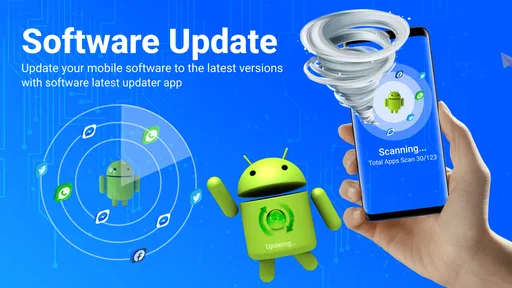
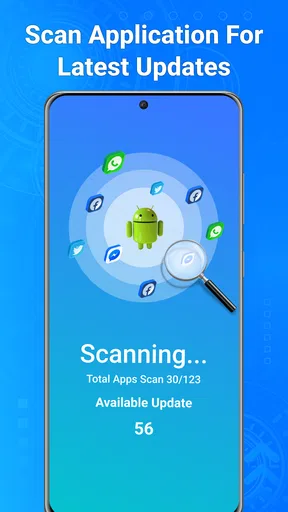
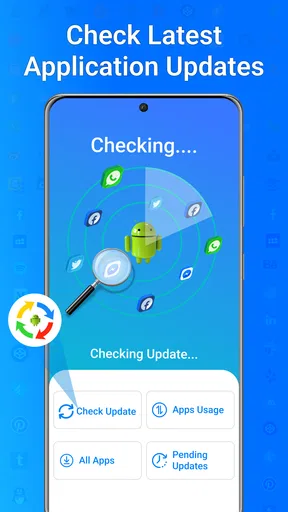
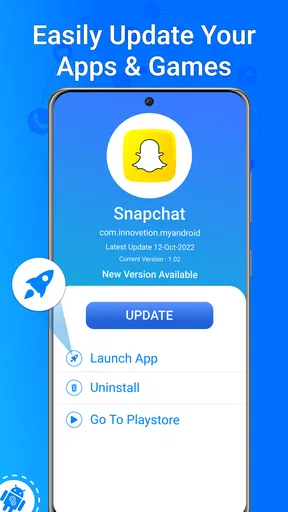
 Analysis by AppCompare
I find update utilities most useful when they make a confusing chore easier to understand, not when they promise to fix every phone problem. Software Update System Update is aimed at people who want a place to check on their device’s software and apps. I’d treat it as a guide to the update process, while remembering that the phone’s own settings and the app store remain the places where updates are ultimately managed.
Where update checks can get confusing
A common point of friction is seeing an update notice in one place but not another. A system update, an app update, and a device-specific component can follow different routes, so a single screen may not mean that every part of a phone is ready to change. I would use this app to orient myself, then read the details presented by the relevant system settings or app store before installing anything.
That distinction matters if you are helping a relative or managing a phone you do not use every day. A clear update reminder can prompt a useful check, but it cannot make an update available when the device maker or app publisher has not released one for that device. If the app reports no pending update, I would not interpret that as proof that a phone is perfectly current; I would also check the built-in update screen when staying current is important.
Simple checks before you begin
Before starting a system update, I make sure I know which device settings screen handles it and that I can unlock the phone if it needs attention. I also check that the phone has enough battery and a dependable connection, and I avoid beginning a larger update when I need the device immediately. These habits are useful whether I discover the update through this app or through the phone’s own menus.
For app updates, I check the app’s identity and requested changes in the usual app store rather than relying on a general reminder alone. This is a practical way to avoid tapping through an unfamiliar prompt too quickly. If a screen is unclear, I pause and open the relevant system or store settings directly instead of guessing what a button will do.
Recovering from a stalled or unclear workflow
If an update check seems stuck, I would first close and reopen the app, confirm the connection, and try the phone’s built-in update page. If the built-in page also cannot complete a check, restarting the device is a sensible basic step before trying again. I would avoid repeatedly tapping an install control or clearing data without understanding the consequences, especially when the phone is still working normally.
When a download or installation appears to pause, patience is often safer than forcing the process to stop. Some updates take time, and the phone may need to finish its own installation steps. If the device shows an error, I would note its wording and use the device maker’s normal support guidance; a separate update utility cannot resolve every issue with the operating system, network, or storage.
Worth Reading Before You Choose

Flipboard Shows What News Apps Must Do Beyond the Feed

Switching to Android Auto Means Rethinking Your Driving Routine

Google Calendar Makes a Crowded Week Easier to Manage

Ludo King Makes the Most of the Minutes Between Plans

Baby Panda World Brings Quick Play to Modern Phones, but Its Game Library Feels Busy

ESPN’s Live Game View Makes Following Close Games Easier
Why You Should Care About Updates
First off, let’s chat about why updates even matter. Think of them as a way to keep your device fresh and secure. They squash bugs, improve performance, and sometimes add new features. If you’ve ever wondered why your phone randomly prompts you to update, it’s basically for these reasons. The Software Update System Update app claims to simplify this whole process, so you’re never left out in the cold.
First Impressions: The Interface
Jumping into the app, the first thing I noticed was the user-friendly interface. It’s got this clean, straightforward design that doesn’t leave you guessing where to tap next. The home screen gives you a quick snapshot of your device’s current update status, which is super handy. I mean, who wants to dig through settings when you can get the info at a glance?
Features That Stand Out
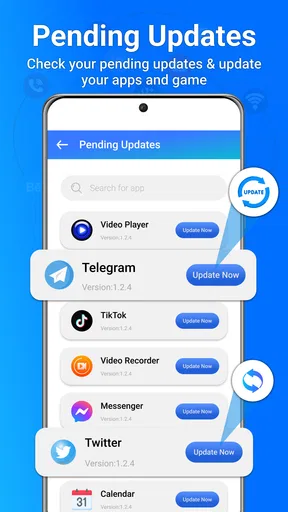
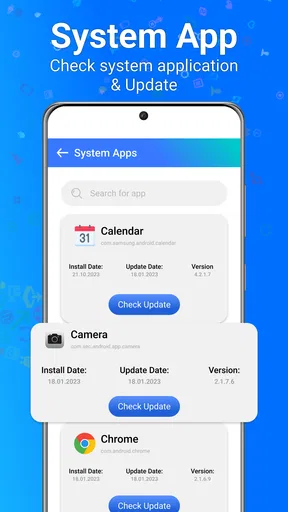
One thing that makes this app stand out is its ability to check for updates across various parts of your device. We’re talking about system updates, app updates, and even firmware. It’s like having a personal assistant that keeps an eye on every nook and cranny of your phone.
- Automated Update Checks: You can set it to check for updates automatically, so you don’t have to remember to do it manually. This is a life-saver for the forgetful among us.
- Detailed Update Information: Before you hit that update button, the app gives you a rundown of what’s new. It’s great to know what improvements or changes are coming your way.
- Backup and Restore: It offers options to back up your data before an update, which is a nifty feature to have. Peace of mind, right?
Performance: Does It Deliver?
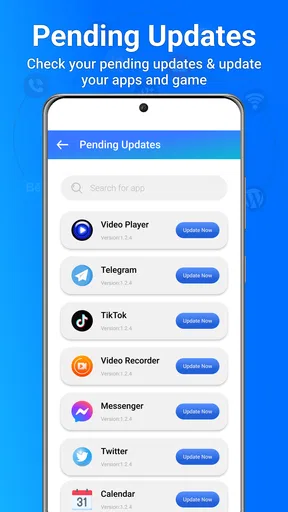
Now, onto the big question: does it actually work? From my experience, yes, it does! The app efficiently scans and alerts you of any pending updates. The update process itself is seamless, and I didn’t encounter any hiccups during installation. The app’s performance is as smooth as butter, and it doesn’t hog system resources, which is a big win in my book.
Little Extras That Add Value
There’s also a section dedicated to update history, which I found useful for keeping track of what’s been done. It’s like having a little logbook for your phone’s health. Plus, it’s got a notification feature that you can customize, ensuring you’re alerted in a manner that suits your style. Whether it’s a subtle nudge or a neon flashing sign, the choice is yours.
Putting the convenience in context
The key question for me is whether a separate utility saves effort compared with opening the phone’s settings or checking the app store directly. Its appeal is the convenience of having update-related information gathered in one place; the trade-off is that a general tool is not a replacement for the controls built into Android or the store that distributes an app. I would use it as a starting point, not as the final authority when deciding whether to install a change.
A useful routine is to check the notice, read the update information, and then confirm the action in the appropriate system screen. That extra pause is especially worthwhile before a major operating-system change, when I want to know what is changing and make sure my important files are backed up. A reminder can make the task easier to remember, but it does not remove the need to make a careful decision.
Who will find it useful
I can see this being handy for someone who forgets to look for updates until a notification appears, or for a less technical user who prefers a visible overview to searching through several menus. It may also suit someone setting aside a regular phone-maintenance moment: check the overview, deal with app updates, and separately confirm whether Android offers a system update.
For example, imagine checking your phone before a trip. You have a little time at home and want to avoid discovering an update prompt when you need directions. I would use the app as a reminder to review update status, then handle any available installation while connected to a reliable network and with enough battery. I would not start a lengthy update at the airport gate or just before leaving, because a tool that helps identify an update cannot guarantee how long the device’s installation will take.
On the other hand, if you are comfortable navigating Android settings and only update apps through the store, the extra layer may not change your routine much. People who expect a utility to force an update that the manufacturer has not released, repair a failing phone, or guarantee that every component is current should look elsewhere for the actual fix. The built-in settings, app store, or device maker’s support channel is the better route for those jobs.
Details that shape the decision
This is a free app in the Libraries & Demo area, made by MMK Apps Studio. It is rated for Everyone and has more than 50,000 installs. Its average rating is currently 0.0, so I would not use crowd feedback as a reason on its own to install it; I would decide based on whether its update-checking approach fits my habits.
The app was released on November 20, 2024, and its current version is 4.1.3. It supports Android 7.0 and newer, which is useful to know if you are checking an older phone. Optional in-app purchases range from $0.49 to $5.49 per item, so I would look carefully at any purchase prompt and decide whether the free experience already covers what I need before paying.
When the phone, not the utility, is the obstacle
If a system update is unavailable, an app cannot create a release for a particular device. Availability can depend on the device and the software offered for it, so I would check Android’s own update settings rather than repeatedly scanning. Likewise, if an app update is missing, the relevant app-store page is the sensible place to verify whether there is an update to install.
It is also worth separating update trouble from a general performance problem. A phone that is slow, short on storage, or having connection trouble may need attention for reasons an update checker cannot address. I would first identify the immediate symptom and use the matching device setting or support resource instead of installing updates indiscriminately in the hope that they will solve it.
First Impressions: The Interface
Jumping into the app, the first thing I noticed was the user-friendly interface. It’s got this clean, straightforward design that doesn’t leave you guessing where to tap next. The home screen gives you a quick snapshot of your device’s current update status, which is super handy. I mean, who wants to dig through settings when you can get the info at a glance?
Features That Stand Out
One thing that makes this app stand out is its ability to check for updates across various parts of your device. We’re talking about system updates, app updates, and even firmware. It’s like having a personal assistant that keeps an eye on every nook and cranny of your phone.
- Automated Update Checks: You can set it to check for updates automatically, so you don’t have to remember to do it manually. This is a life-saver for the forgetful among us.
- Detailed Update Information: Before you hit that update button, the app gives you a rundown of what’s new. It’s great to know what improvements or changes are coming your way.
- Backup and Restore: It offers options to back up your data before an update, which is a nifty feature to have. Peace of mind, right?
Performance: Does It Deliver?
Now, onto the big question: does it actually work? From my experience, yes, it does! The app efficiently scans and alerts you of any pending updates. The update process itself is seamless, and I didn’t encounter any hiccups during installation. The app’s performance is as smooth as butter, and it doesn’t hog system resources, which is a big win in my book.
Little Extras That Add Value
There’s also a section dedicated to update history, which I found useful for keeping track of what’s been done. It’s like having a little logbook for your phone’s health. Plus, it’s got a notification feature that you can customize, ensuring you’re alerted in a manner that suits your style. Whether it’s a subtle nudge or a neon flashing sign, the choice is yours.
A practical verdict
My advice is to treat this as a convenience layer rather than a maintenance guarantee. If a central place to review updates will help you remember to check, that can be worthwhile; if you already know where Android and the app store handle updates, going straight there is simpler. In either case, I would read the change details, back up anything important before a system update, and avoid beginning an installation when I need the phone right away.
Overall, I’d recommend Software Update System Update to someone who wants an approachable prompt to review the phone’s software and is comfortable confirming changes through the appropriate system or store screen. I would skip it if I expected it to repair device problems or take over Android’s update process. Used with realistic expectations, it can be a helpful nudge; the final check and decision still belong to you.
Pros
- Easy to use with a clean interface.
- Provides regular updates for apps.
- Ensures device security enhancements.
- Auto-checks for outdated software.
- Reduces manual update hassles.
Cons
- Can drain battery during updates.
- Occasional compatibility issues.
- Notifications can be intrusive.
- Requires stable internet connection.
- Limited support for older devices.
FAQs for Software Update System Update
What is the Software Update System Update app used for?
The Software Update System Update app is designed to help users keep their devices up to date with the latest software versions. It provides notifications for new updates and simplifies the installation process, ensuring your device runs smoothly and securely. This app is essential for maintaining optimal performance and security.
Is the Software Update System Update app safe to use?
Yes, the Software Update System Update app is safe to use. It is designed to deliver official updates directly from your device manufacturer or operating system provider. Ensuring updates come from a legitimate source is crucial for maintaining device security and avoiding potential vulnerabilities.
How often should I check for updates using this app?
It is recommended to check for updates regularly, ideally once a month. However, the Software Update System Update app typically notifies you automatically when a new update is available. Regular updates can enhance your device’s performance, introduce new features, and provide critical security patches.
What should I do if an update causes issues on my device?
If an update causes issues, try restarting your device first. If the problem persists, check the app's support or FAQ section for troubleshooting steps. In some cases, rolling back to a previous version may be necessary. Always back up your data before installing updates to prevent data loss.
Does the app require a lot of storage space on my device?
The Software Update System Update app itself typically requires minimal storage space. However, the updates it installs might vary in size. Ensure that you have enough free space on your device before downloading updates, as insufficient storage can cause installation failures or other performance issues.


